




If you've ever built reports for a business team, this will sound familiar.
A head of sales needs a quarterly revenue report by region. They tell the BA, the BA writes a spec, a developer picks it up. They spend time learning the schema, write the queries, build the report, send it for review. The BA spots something missing. Another round trip. By the time the report reaches production, a week has passed since the original request.
The real cost is not building the report itself. It is the chain of handoffs between the person who needs the data, the person who defines the requirements, and the person who implements them.
It doesn't have to be this way.
In this article, we demonstrate how the Jmix Reports add-on can be extended with an AI-powered wizard that dramatically shortens this cycle. Instead of the back-and-forth described above, a developer types a plain-English request — “Show total revenue by region, joining orders, customers, and products” — and gets a working SQL query in seconds, built against the live database schema.
We walk through the working prototype, explain the key technical insight that makes it reliable, and show the full implementation using Spring AI and Jmix.
Extending Jmix Reports Add-on
The Jmix Reports add-on was designed to make report creation accessible not just to developers but to business analysts as well. It provides a visual editor where reports are built from templates (mainly doc and excel) and data bands — named datasets powered by SQL, JPQL, or Groovy queries. The idea is that a BA who understands the data should be able to assemble a report without writing code from scratch.
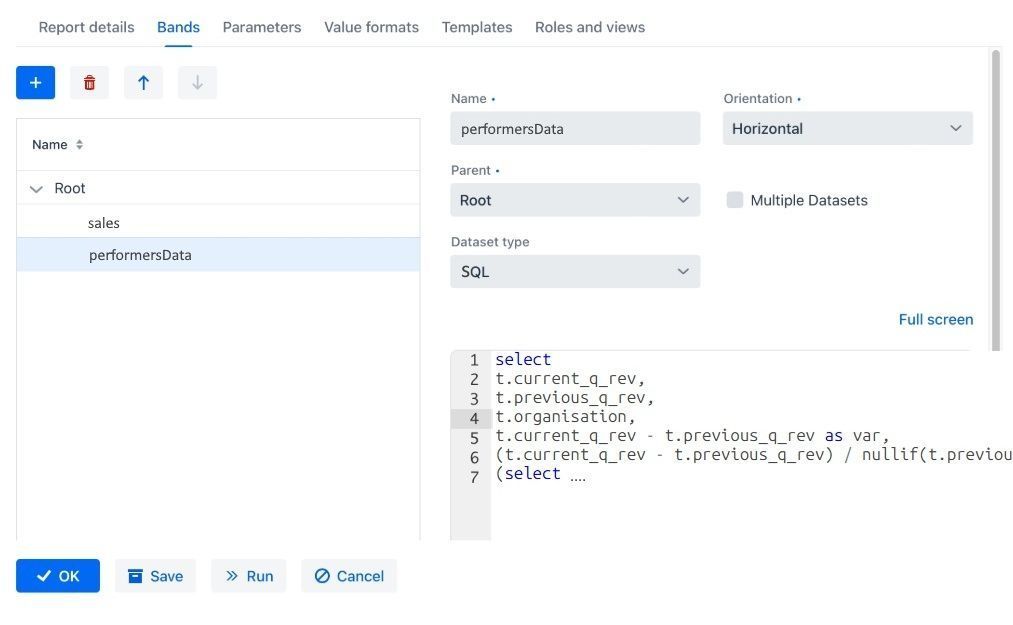
Figure 1. SQL bands in Jmix Report Add-on.
In practice, though, the queries still need to be written. Even a two-table JOIN requires knowing exact column names, data types, and join conditions. For anything beyond the simplest reports, a developer is still in the loop — and we're back to the handoff problem.
This is where an LLM can close the remaining gap. Instead of manually investigating the schema, the developer describes what data they need in plain English, and the wizard generates the query against the live database.
Below is the solution that has been implemented as a proof of concept to demonstrate how the new version of Jmix AI-empowered wizard can look like.
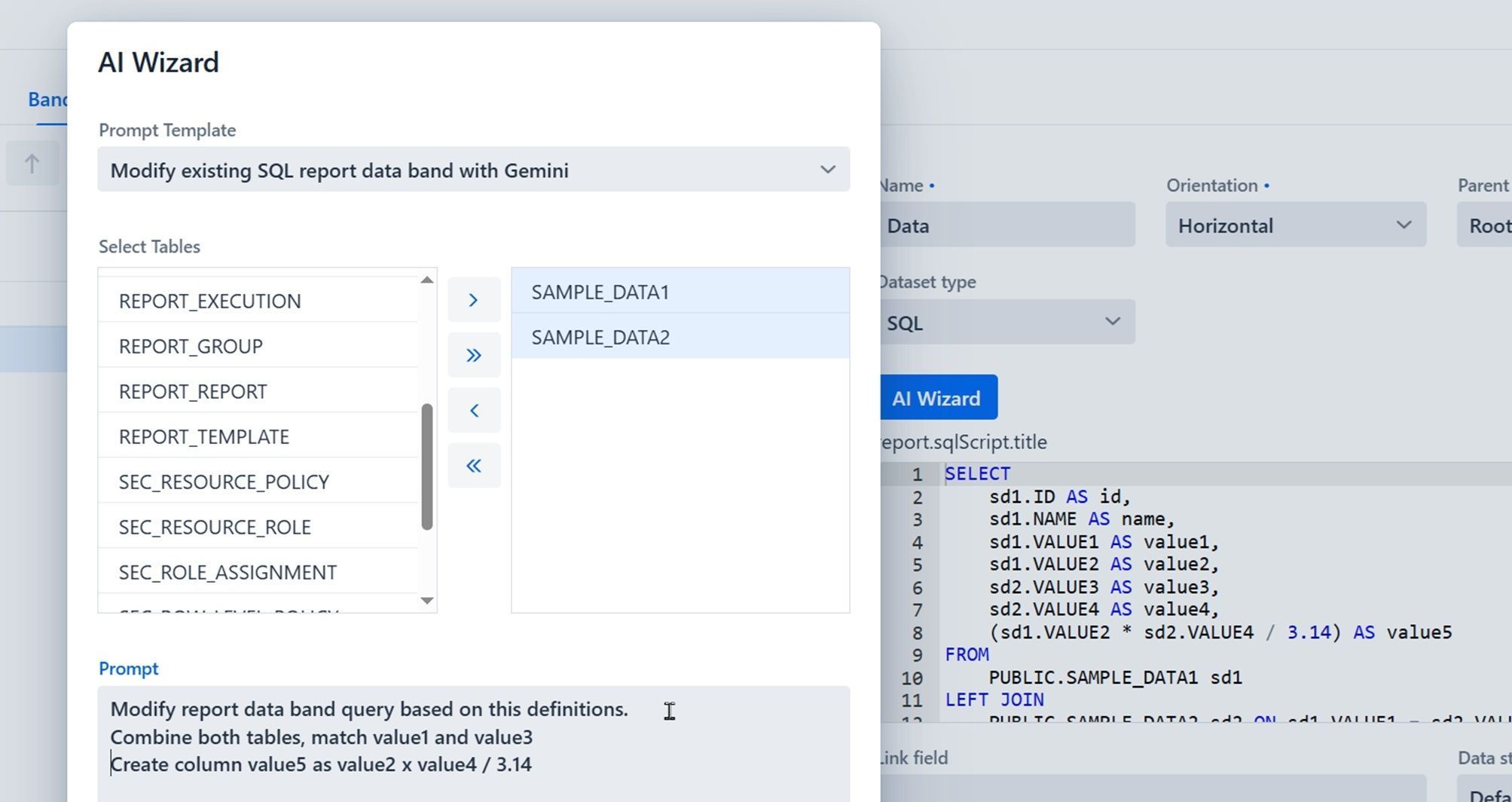
Figure 2. AI Wizard within Jmix Reports Add-on.
The same result can be potentially achieved with external tools, whether they are built into IDE or providing DB schema directly into LLM chat bots. The AI Wizard operates inside the application. Context is injected automatically: the user picks tables from a list; the wizard fetches DDL from the live database and assembles the prompt. No copy-pasting schemas. The result goes straight into the code editor, immediately executable.
To implement AI Wizard functionality into Reports, we will need to slightly modify the Reports add-on itself.


How AI Wizard works inside Jmix Report Add-on
While the UI implementation for the AI Wizard can vary — and will likely evolve as this moves toward a production feature — the most interesting part is what happens behind the button click: how the application assembles context from the live database, feeds it to an LLM, and gets back a usable query.
This comes down to three things: managing LLM connections, building the right prompt, and validating the output. Let's start with the foundation.
Managing LLMs in Jmix with Spring AI
Spring AI is Spring's native framework for integrating AI models into Spring Boot applications. It provides a unified API across different LLM providers so switching between models is a configuration change, not a rewrite. For a Jmix application, which is already built on Spring Boot, it's a natural fit and requires just two lines in build.gradle:
implementation platform('org.springframework.ai:spring-ai-bom:1.0.0')
implementation 'org.springframework.ai:spring-ai-starter-model-openai'
The BOM manages Spring AI versions. The OpenAI starter covers both OpenAI and Gemini. Google provides an OpenAI-compatible REST endpoint, so the same client library works for both. The Gemini bean swaps the base URL:
@Bean("geminiChatClient")
@ConditionalOnProperty(name = "spring.ai.gemini.api-key")
public ChatClient geminiChatClient(
        @Value("${spring.ai.gemini.api-key}") String apiKey,
        @Value("${spring.ai.gemini.model:gemini-2.0-flash}") String model) {

    OpenAiApi geminiApi = OpenAiApi.builder()
            .apiKey(apiKey)
            .baseUrl("https://generativelanguage.googleapis.com/v1beta/openai")
            .build();

    OpenAiChatModel geminiModel = OpenAiChatModel.builder()
            .openAiApi(geminiApi)
            .defaultOptions(OpenAiChatOptions.builder()
                    .model(model)
                    .temperature(0.1)
                    .build())
            .build();

    return ChatClient.builder(geminiModel).build();
}
As both providers are constructed manually, Spring AI auto-configuration must be excluded; otherwise, the application fails on startup when API keys are missing:
spring.autoconfigure.exclude=\
  org.springframework.ai.model.openai.autoconfigure.OpenAiChatAutoConfiguration,\
  org.springframework.ai.model.openai.autoconfigure.OpenAiAudioSpeechAutoConfiguration,\
  org.springframework.ai.model.openai.autoconfigure.OpenAiAudioTranscriptionAutoConfiguration,\
  org.springframework.ai.model.openai.autoconfigure.OpenAiEmbeddingAutoConfiguration,\
  org.springframework.ai.model.openai.autoconfigure.OpenAiImageAutoConfiguration,\
  org.springframework.ai.model.openai.autoconfigure.OpenAiModerationAutoConfiguration
UnifiedAIService routes each template’s request to the correct provider via an EnumMap. Both clients are @Autowired(required = false). Missing key means missing bean, not a crash:
@Autowired(required = false) @Qualifier("geminiChatClient")
private ChatClient geminiClient;

@Autowired(required = false) @Qualifier("openAiChatClient")
private ChatClient openAiClient;

@PostConstruct
private void init() {
    if (geminiClient != null) chatClients.put(AIWizardConnection.GEMINI, geminiClient);
    if (openAiClient != null) chatClients.put(AIWizardConnection.OPENAI, openAiClient);
}
The @Qualifier names match the @Bean names from AIClientConfiguration. The actual LLM call:
client.prompt().system(systemInstruction).user(prompt).call().content();
Now we are ready to create system and user instructions and pass them as prompts into LLM we choose to use.
Context Enrichment Services
Out of the box, an LLM knows nothing about your database. It will guess column names from conventions and get them wrong. The prototype solves this with two custom services that extract schema information from the live application and inject it into every prompt: TableDDLService for SQL and EntityMetadataService for JPQL.
DDL Generation (SQL)
TableDDLService generates CREATE TABLE statements from live database metadata using JDBC DatabaseMetaData calls (getColumns, getPrimaryKeys, getImportedKeys, getIndexInfo). For each selected table, it builds full DDL: columns with types and constraints, primary keys, foreign keys, and indexes.
The foreign key extraction is the most valuable part, and this is what enables correct JOINs:
private List<ForeignKeyDefinition> getForeignKeys(DatabaseMetaData metaData,
        String catalog, String schema, String tableName) throws SQLException {
    List<ForeignKeyDefinition> foreignKeys = new ArrayList<>();
    // getImportedKeys returns FKs where this table is the child (referencing) table
    try (ResultSet rs = metaData.getImportedKeys(catalog, schema, tableName)) {
        while (rs.next()) {
            foreignKeys.add(new ForeignKeyDefinition(
                    rs.getString("FK_NAME"),
                    rs.getString("FKCOLUMN_NAME"),     // column in this table
                    rs.getString("PKTABLE_SCHEM"),     // referenced table's schema
                    rs.getString("PKTABLE_NAME"),      // referenced table
                    rs.getString("PKCOLUMN_NAME"),     // referenced column
                    mapReferentialAction(rs.getInt("DELETE_RULE")),
                    mapReferentialAction(rs.getInt("UPDATE_RULE"))
            ));
        }
    }
    return foreignKeys;
}
Table name lookup is case-insensitive. HSQLDB stores names in uppercase, PostgreSQL in lowercase, Oracle in uppercase. The service tries exact match first, then uppercase, then lowercase, so the same code works across databases. The DDL introspection uses standard JDBC DatabaseMetaData, portable across PostgreSQL, Oracle, and other JDBC databases. For production, adjust the system instruction in the prompt template to target the specific dialect (e.g., COALESCE vs. NVL, LIMIT vs. FETCH FIRST).
Entity Metadata (JPQL)
For JPQL templates, entity metadata replaces DDL. EntityMetadataService walks JPA entities via Jmix MetaClass and MetaProperty, extracting @Column, @JoinColumn, relationship annotations (@ManyToOne, @OneToMany), and fetch types.
Sample output for the CustomerOrder entity:
=== Entity Definition ===
Name: CustomerOrder
Class: com.company.aiwizard.entity.CustomerOrder
Table: CUSTOMER_ORDER
JPA Entity: true
Versioned: true

--- Primary Key ---
Property: id
Type: UUID
Column: ID

--- Properties (6) ---

orderNumber:
  Type: String
  Column: ORDER_NUMBER
  Mandatory: true

customer:
  Type: Customer
  Property Type: ASSOCIATION
  Column: CUSTOMER_ID
  Relation: ManyToOne (LAZY)

...
This output replaces DDL in JPQL prompts. JPQL operates on JPA entities rather than database tables: class names, field names, dot-notation for associations. With this context, the LLM produces idiomatic JPQL:
SELECT e FROM CustomerOrder e
    JOIN FETCH e.customer
    JOIN FETCH e.product
ORDER BY e.orderDate DESC
JOIN FETCH and dot-notation instead of SQL-style ON clauses. The entity metadata guides the model toward JPQL idioms.
Prompt Composition
When the user clicks OK in the wizard dialog, processAIWizardRequest assembles them into a single LLM call: system instruction from the template, schema context for each selected table or entity, and the user's plain-English request at the end.
private void processAIWizardRequest(AIWizardTemplate selectedTemplate,
                                    Collection<String> selectedItems,
                                    String prompt, Integer historyDepth) {
    String systemInstruction = selectedTemplate.getContextPrefix();
    StringBuilder userPrompt = new StringBuilder();

    // 1. DDL or entity metadata for each selected table/entity
    if (dataSetType == DataSetType.SQL) {
        for (String tableName : selectedItems) {
            userPrompt.append("=== ").append(tableName).append(" ===\n");
            userPrompt.append(tableDDLService.getTableDDLAsString(tableName));
        }
    } else if (dataSetType == DataSetType.JPQL) {
        for (String entityName : selectedItems) {
            userPrompt.append("=== ").append(entityName).append(" ===\n");
            userPrompt.append(entityMetadataService.getEntityDefinitionAsString(entityName));
        }
    }
    // 2. Previous interactions from history (if historyDepth > 0)
    // 3. Current script for MODIFY operations (under "=== Current Script ===")
    // 4. User's text at the end
    userPrompt.append(prompt);

    // Call the LLM
    String result = unifiedAIService.generateContent(userPrompt.toString(),
            systemInstruction, selectedTemplate.getConnection());

    result = stripCodeBlockFormatting(result);   // LLMs sometimes wrap SQL in ```
    if (!isAllowedQuery(result)) {
        notifications.create("AI generated a destructive statement, rejected.");
        saveToHistory(selectedTemplate, originalValue, fullUserPrompt, "[REJECTED] " + result);
        return;
    }
    dataSetScriptCodeEditor.setValue(result);
    saveToHistory(selectedTemplate, originalValue, fullUserPrompt, result);
}
Steps 2 and 3 are omitted for brevity. The full method is in ExtReportDetailView.java class and can be found in the repository.
Each prompt template is a JPA entity (AIWizardTemplate) with the following fields:
@JmixEntity
@Table(name = "AI_WIZARD_TEMPLATE")
public class AIWizardTemplate {
    private String name;                   // "Create SQL with Gemini"
    private String connection;             // GEMINI or OPENAI (AIWizardConnection enum)
    private String operation;              // CREATE or MODIFY (AIWizardOperation enum)
    private Integer datasetType;           // 10 = SQL, 20 = JPQL (Jmix Reports DataSetType)
    @Lob private String contextPrefix;     // the system instruction text
    // ... audit fields (createdBy, createdDate, etc.)
}
Three templates are pre-seeded via Liquibase. The contextPrefix field holds the system instruction, the text that goes into .system(). When the user clicks OK, the wizard assembles two parts: the** system instruction** from the template and a user prompt built from DDL definitions plus the user’s text.
When user types in the pormpt:
Show total revenue by customer city, joining orders, customers, and products.
The following composition goes into LLM:
System instruction (.system()): You are an expert SQL developer working with Jmix 2.7.4 and the Reports add-on.
Return ONLY the SQL code, no explanations.
Use standard SQL syntax compatible with HSQLDB and PostgreSQL.
Use table and column names exactly as provided in the DDL definitions below.
When joining tables, use the foreign key columns from the DDL.
Always alias columns for readability.

User prompt (.user()):
=== CUSTOMER ===
CREATE TABLE PUBLIC.CUSTOMER (
    ID UUID NOT NULL, NAME VARCHAR(255) NOT NULL,
    EMAIL VARCHAR(255), CITY VARCHAR(255),
    CONSTRAINT PK_CUSTOMER PRIMARY KEY (ID)
);
=== PRODUCT ===
CREATE TABLE PUBLIC.PRODUCT (
    ID UUID NOT NULL, NAME VARCHAR(255) NOT NULL,
    PRICE DECIMAL(19,2) NOT NULL, CATEGORY VARCHAR(255),
    CONSTRAINT PK_PRODUCT PRIMARY KEY (ID)
);
=== CUSTOMER_ORDER ===
CREATE TABLE PUBLIC.CUSTOMER_ORDER (
    ID UUID NOT NULL, ORDER_NUMBER VARCHAR(255) NOT NULL,
    CUSTOMER_ID UUID NOT NULL, PRODUCT_ID UUID NOT NULL,
    QUANTITY INTEGER NOT NULL, TOTAL_AMOUNT DECIMAL(19,2),
    ORDER_DATE DATE NOT NULL,
    CONSTRAINT PK_CUSTOMER_ORDER PRIMARY KEY (ID),
    CONSTRAINT FK_CUSTOMER_ORDER_ON_CUSTOMER
        FOREIGN KEY (CUSTOMER_ID) REFERENCES CUSTOMER(ID),
    CONSTRAINT FK_CUSTOMER_ORDER_ON_PRODUCT
        FOREIGN KEY (PRODUCT_ID) REFERENCES PRODUCT(ID)
);
The DDL between === NAME === markers is generated automatically from the live database. The instruction “Return ONLY the SQL code, no explanations” enables LLM to produce an artifact rather then a conversation.
For MODIFY operations, the prompt also includes the current script under === Current Script === and optionally previous prompt/response pairs from history. For JPQL templates, entity metadata replaces DDL: class names, field names, relationship annotations instead of table structures.
User can also manage the context window by addining the history of previous messages within current messages. Please consult the documentation for more details.
Prototype also implements Prompt Testing functionality to provide a better observability of information exchange with LLMs.

Security
As with any enterprise solution, security questions are taken seriously by Jmix and its components. Here is what must be taken into consideration when implementing LLMs in general and frontier models in particular.
The most effective safeguard is the simplest: a read-only database connection. Route report execution through a dedicated JDBC DataStore with read-only credentials. It does not matter what the LLM generates. The database will reject any write operation regardless.
Every LLM response also passes through isAllowedQuery() before reaching the editor, a safety gate that rejects anything that is not a read-only statement:
private boolean isAllowedQuery(String query) {
    if (query == null || query.isBlank()) return false;
    if (query.contains(";")) return false;                         // blocks multi-statement injection
    String firstToken = query.trim().split("\\s+", 2)[0].toUpperCase();
    return "SELECT".equals(firstToken) || "WITH".equals(firstToken); // CTEs allowed
}
It catches the obvious vectors (semicolons for multi-statement injection, non-SELECT first tokens).
This should be enough for internal reporting when used together with a read-only DB connection behind SSO. More complex use cases will require further security improvements.
Instead of conclusion: Try the AI Wizard Now
Install the project
git clone https://github.com/mbucan/aiwizard.git
cd aiwizard
It requires Java 17+. HSQLDB is bundled, nothing else to install.
Add a Gemini API key to src/main/resources/application.properties:
spring.ai.gemini.api-key=<your-gemini-key>
A free Gemini key is available at Google AI Studio. OpenAI is optional; if the key is not provided, templates using the OpenAI connection are simply unavailable.
./gradlew bootRun
Open http://localhost:8080, log in with admin / admin.
- Navigate to Customers and click Populate with data above the data grid. This generates 10 sample customers with names, emails, and cities. Repeat for Products (15 products with prices and categories) and Orders (30 orders with FK links to customers and products).
- Navigate to Reports → create a report with a data band (Jmix Reports guide covers the basics) → click AI Wizard above the query editor.
Four prompt templates are pre-seeded via Liquibase: two for SQL (create and modify), one for JPQL (create), and one OpenAI SQL template. Select a template, pick tables or entities, type a request, and the generated query appears in the editor. Enjoy!
Complete source code: github.com/mbucan/aiwizard
Mladen Bucan, Jmix Ambassador
Dmitrii Cherkasov, Jmix DevRel


